
Linux Command Line for Bioinformatics
Chapter 1 of 5: Why Linux for bioinformatics, and your first commands
Almost every bioinformatics tool runs in a terminal. FastQC, BWA-MEM2, GATK, samtools, STAR and Salmon have no buttons to click. Your sequencing data is also too big to open in Excel or Notepad: one human exome easily has 100 million reads. Linux for bioinformatics is therefore not an optional extra. It is the first skill every analysis is built on.
In this free tutorial you will learn the Linux command line from zero, using real biological files: a genome in FASTA format, sequencing reads in FASTQ, gene annotation in GTF and variants in VCF. You will move around folders, look inside files, search and count with grep, cut, sort and awk, join commands with pipes, and write your first reusable script. Every command is explained, and every output shown is real.
Choose your reading path (you can switch any time):
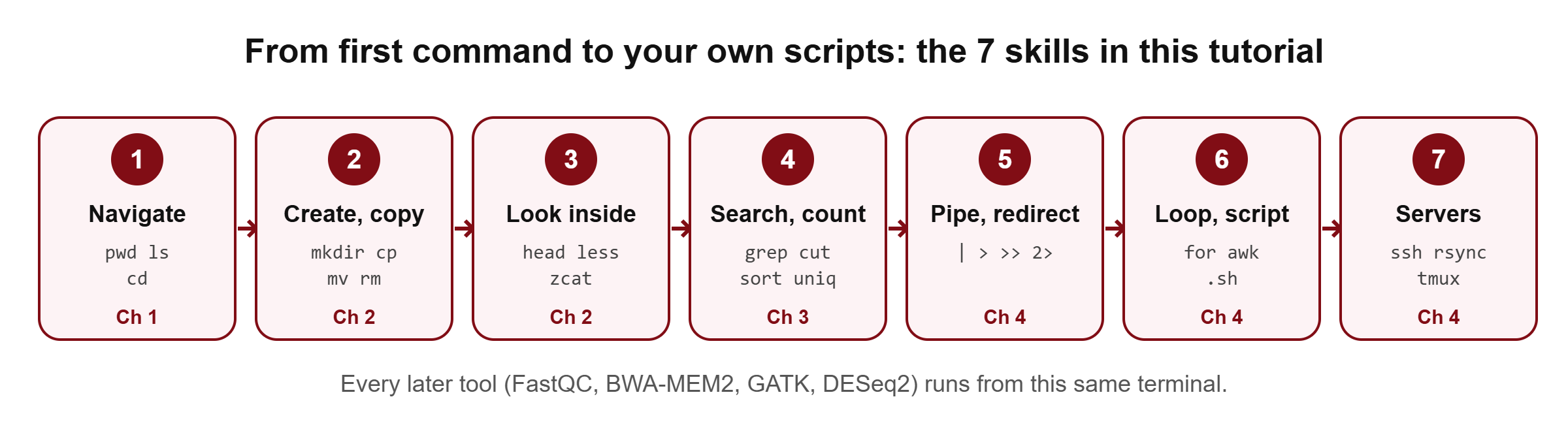
What you will learn in this Linux for bioinformatics tutorial
- What the terminal, the shell and Linux are, and how they fit together
- How to move around the file system with absolute and relative paths
- How to create, copy, move and safely delete files and folders
- How to look inside FASTA, FASTQ, GTF and VCF files without opening them in an editor
- How to search and count with
grep,cut,sort,uniqandwc - How to join commands with pipes and save results with redirection
- How to use
awkfor columns, sequence lengths and GC content - How to write a small Bash script and run long jobs on a server
Why the command line matters in bioinformatics
There are three practical reasons. First, size: sequencing files are gigabytes. Command-line tools read them line by line, as a stream, so a laptop can count the reads in a 20 GB FASTQ file without ever loading it into memory. Second, tools: nearly all research software is written for Linux and installed with Bioconda, and most of it has only a command-line interface. Third, servers: real analyses run on lab servers, high-performance computing (HPC) clusters or the cloud. These machines have no desktop. You reach them through a terminal.
There is also a scientific reason. A command is a written, exact record of what you did. If you write your steps down as commands, you or a reviewer can run them again and get the same result. Clicking through a program leaves no such record.
🔬 Researcher notes
Bioconda, the main software channel for bioinformatics, packages thousands of command-line tools for Linux and macOS, and most pipelines (nf-core, Snakemake workflows) assume a Linux shell (Grüning et al., 2018, Nature Methods 15:475–476, doi:10.1038/s41592-018-0046-7).
Reproducibility guides for computational biology recommend recording every step as a command or script rather than doing manual edits (Sandve et al., 2013, PLoS Comput Biol 9(10):e1003285, doi:10.1371/journal.pcbi.1003285; Wilson et al., 2017, PLoS Comput Biol 13(6):e1005510, doi:10.1371/journal.pcbi.1005510).
Core concepts: terminal, shell and Linux
Three words get mixed up all the time. The terminal is the window you type into. The shell is the program inside that window that reads your command, runs it and shows the result. In this tutorial the shell is Bash, the default on most Linux systems (on a Mac it is zsh, which accepts the same commands for everything we do here). Linux is the operating system underneath, which manages files, memory and programs.
When the shell is ready for a command, it shows a prompt, usually ending in $. In this tutorial a line starting with $ is something you type. Do not type the $ itself.
▸ Go deeper: what happens when you press Enter
The shell splits your line into words at spaces, expands special characters such as * and ~, then looks for a program with the first word’s name. It searches the folders listed in the PATH variable, in order. When it finds the program, it starts it with the remaining words as arguments, waits for it to finish, and shows a new prompt.
echo $PATH
which grep
type cd
which grep prints where the grep program lives (for example /usr/bin/grep). type cd says cd is a shell builtin: some commands are part of the shell itself, not separate programs. This is why conda activate matters later: activating an environment puts its bin folder at the front of PATH, so the shell finds that environment’s tools first.
Core concepts: the file system and paths
Linux keeps every file in one big tree. The top of the tree is called root and is written as a single slash, /. Your personal folder, your home, is usually /home/your_name on Linux and /Users/your_name on a Mac. The shell shortens it to ~.
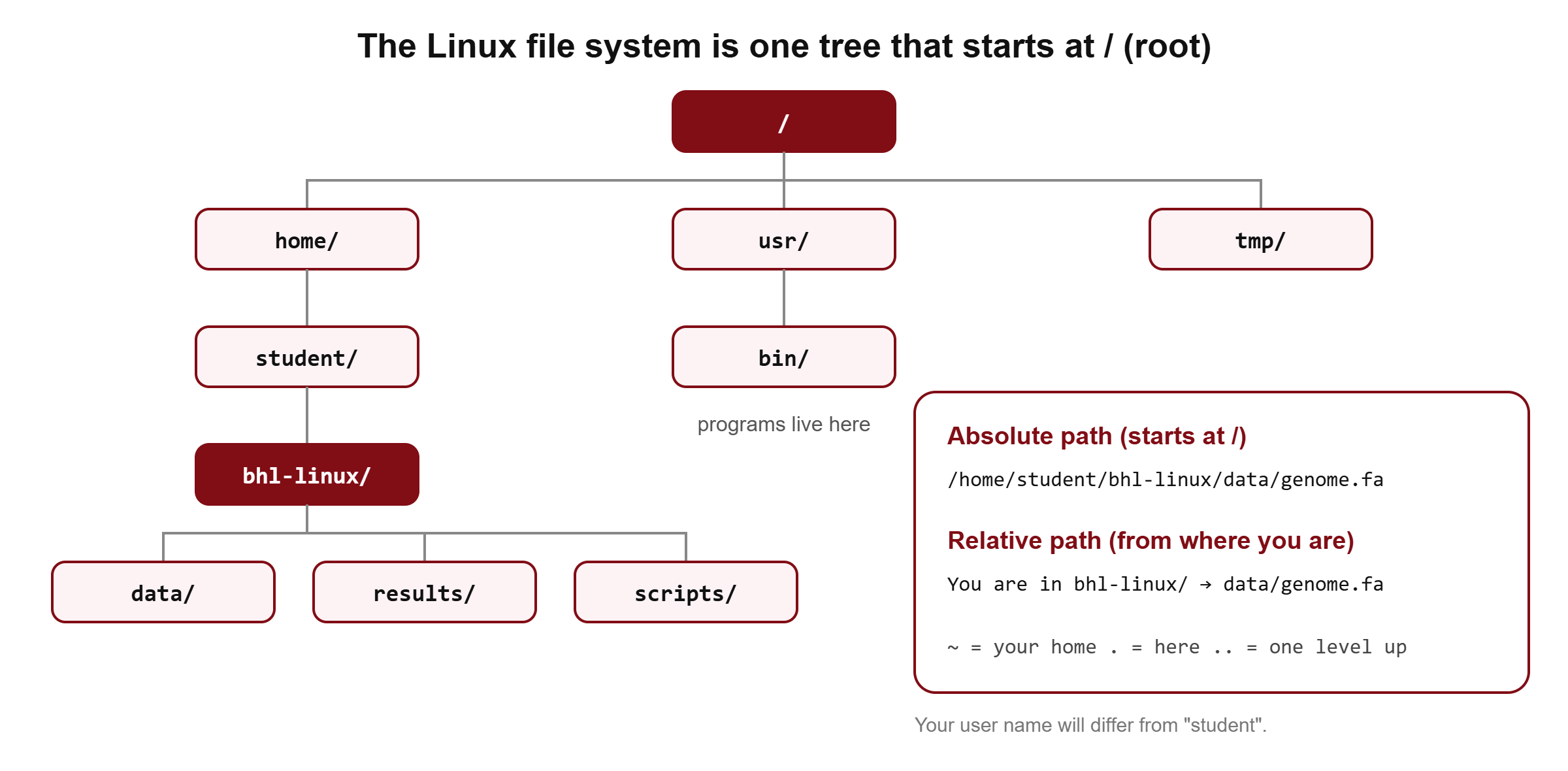
A path is the address of a file. An absolute path starts at root, for example /home/student/bhl-linux/data/genome.fa, and works from anywhere. A relative path starts from the folder you are in now. If you are inside bhl-linux, the same file is simply data/genome.fa. Two shortcuts are worth learning now: a single dot . means “this folder”, and two dots .. mean “one level up”.
Quick check: you are in /home/student/bhl-linux/results. What is the relative path to /home/student/bhl-linux/data/genome.fa?
../data/genome.fa. The .. takes you up from results to bhl-linux, then you go down into data.
Your first three commands: pwd, ls and cd
Open a terminal (Chapter 2 shows how on Windows, macOS and Linux) and try these. pwd prints the folder you are in. ls lists what is inside it. cd changes folder.
pwd
ls
cd /tmp
pwd
cd ~
pwdpwd: print working directory, the folder you are inls: list the files and folders herecd /tmp: change directory to the absolute path/tmpcd ~(or justcd): go back to your home folder
Add options to change what a command does. Options start with a dash. ls -l gives the long format with sizes and dates, ls -h makes sizes human-readable (K, M, G), and ls -a also shows hidden files whose names start with a dot. Short options can be combined: ls -lh.
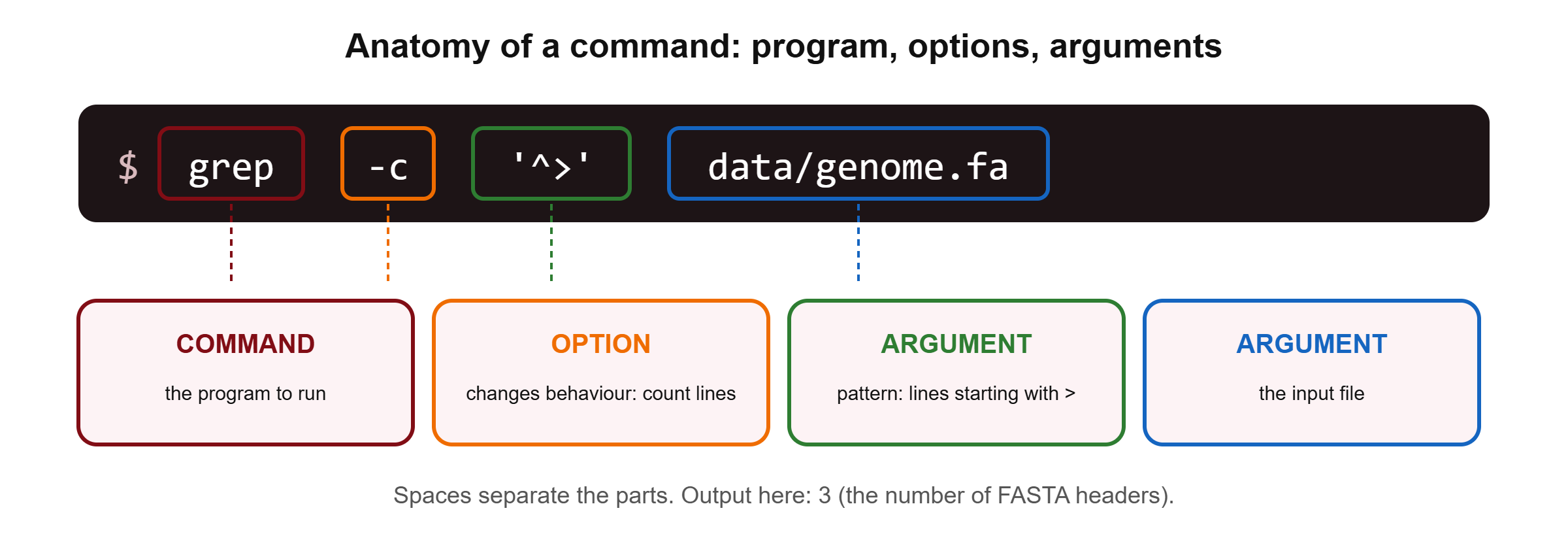
▸ Go deeper: reading the ls -l columns
A line of ls -l such as -rw-r--r-- 1 student student 373 Nov 9 10:12 genome.fa has seven parts: the type and permissions (- for a file, d for a folder, then read/write/execute for the owner, the group and everyone else), the number of links, the owner, the group, the size in bytes, the modification time, and the name.
Permissions matter in Chapter 4: a script must have the execute permission (x) before you can run it with ./script.sh.
Getting help and working faster
You do not need to memorise options. Every standard command explains itself. ls --help prints a short summary, and man ls opens the full manual (press q to quit). Four keyboard habits will save you hours:
- Tab completes file and folder names. Type
cd bhand press Tab. It also prevents typing mistakes in long file names. - Up arrow brings back your previous commands, and Ctrl+R searches your command history.
- Ctrl+C stops a running command. Use it when something takes too long or you made a mistake.
clear(or Ctrl+L) cleans the screen without changing anything else.
| Command | What it does | Example |
|---|---|---|
pwd | Show where you are | pwd |
ls | List files | ls -lh data |
cd | Change folder | cd ~/bhl-linux |
man, --help | Read the manual | man grep |
history | List your past commands | history | tail |