
Linux Command Line for Bioinformatics
Chapter 4 of 5: Pipes, redirection, loops and your first script
Pipes: join small tools into a pipeline
You have already used the pipe, |. It sends the output of one command straight into the next one, without a temporary file. This is the core idea of the command line: many small tools, each doing one job well, joined into a pipeline.
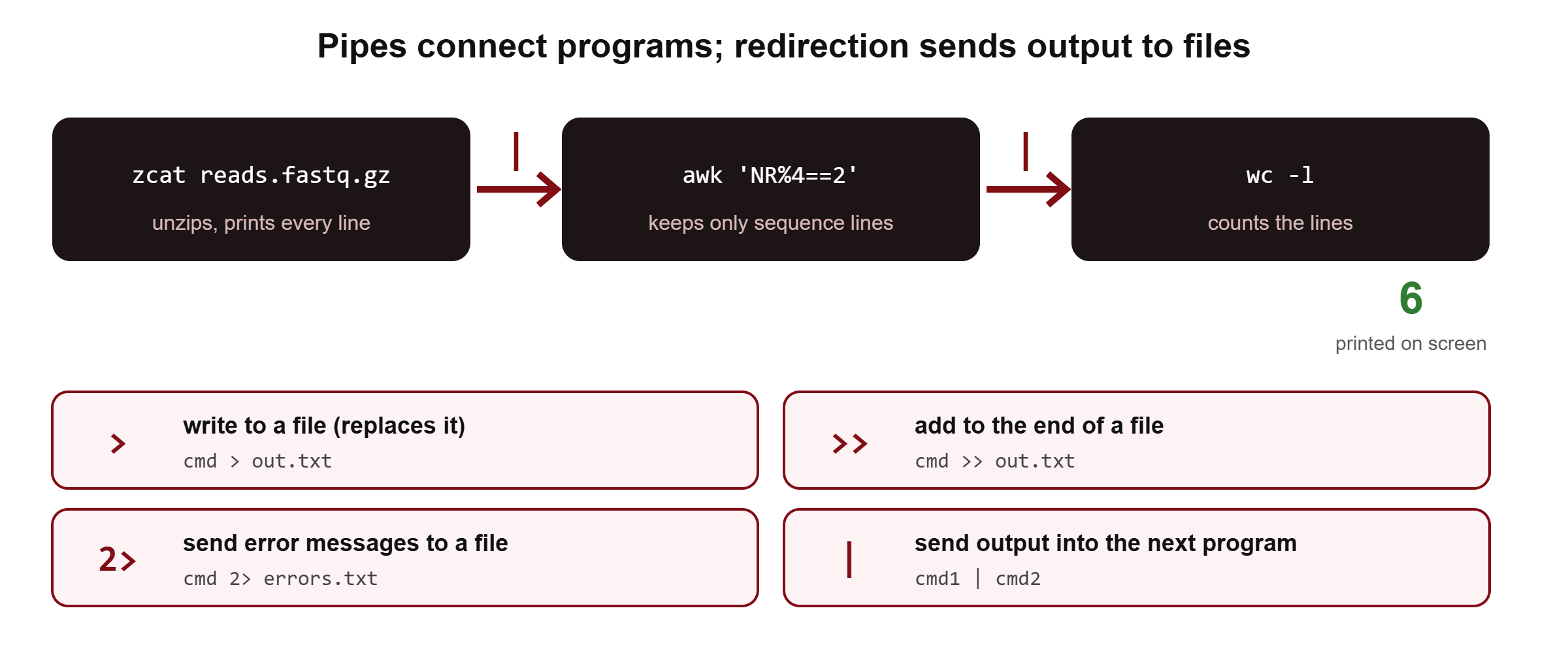
zcat data/reads_R1.fastq.gz | awk 'NR % 4 == 2' | wc -l▸ Go deeper: how data flows through a pipe (pseudo-code)
Every program has three standard streams: standard input (stdin, number 0), standard output (stdout, 1) and standard error (stderr, 2). A pipe connects stdout of the left program to stdin of the right one. All programs in a pipeline run at the same time.
start zcat, awk and wc together
while zcat has data:
    zcat decompresses a chunk  -> writes it to the pipe
    awk reads lines from pipe  -> writes sequence lines to the next pipe
    wc reads lines             -> adds to its count
when zcat finishes, each program sees end-of-input and exits
wc prints the final count
Because data moves in small chunks, a pipeline over a 50 GB file uses only a few megabytes of memory. Error messages go to stderr, which is not piped, so they still appear on your screen.
Redirection: save results to files
grep -v '^#' data/variants.vcf > results/variants_body.txt
echo "analysis started" > results/log.txt
echo "variants extracted" >> results/log.txt
ls nosuchfile 2> results/errors.txt
cat results/log.txt results/errors.txt>: write output to a file; an existing file is replaced without warning>>: add output to the end of a file2>: write error messages to a file<: read input from a file (we used it withtrin Chapter 2)> out.txt 2>&1: send both output and errors to the same file (order matters: file first, then2>&1)
Quick check: you run sort data.txt > data.txt. What happens?
You lose the data. The shell empties data.txt for writing before sort starts reading it, so sort reads an empty file. Always write to a new file: sort data.txt > data.sorted.txt.
Exit codes: did the command work?
Every command finishes with an exit code: 0 means success, anything else means a problem. echo $? shows the code of the last command. You can chain commands on it: && runs the next command only if the first succeeded, and || runs it only if the first failed.
mkdir -p results/qc && echo "folder ready"
grep -q PASS data/variants.vcf && echo "has PASS variants" || echo "no PASS variants"
▸ Go deeper: grep’s exit code surprises people
grep returns 0 when it finds a match, 1 when it finds none, and 2 on a real error such as a missing file. “No match” is therefore treated as a failure. This matters inside strict scripts (below): n=$(grep -c pattern file) stops a script that uses set -e whenever the count is 0. Write n=$(grep -c pattern file || true) when zero is an acceptable answer.
Loops: the same command for many files
Real projects have many samples. A for loop repeats commands for each item in a list:
for s in S01 S02 S03 S04; do
  echo "Processing $s"
doneThe list can come from file names. The shell expands the pattern into matching names before the loop starts:
for f in data/genome.fa data/genes.gtf data/variants.vcf; do
  echo "$f: $(wc -l < "$f") lines"
doneIn a real project the loop usually runs over samples, for example for r1 in raw/*_R1.fastq.gz; do … done, and calls a tool such as fastp or FastQC on each one. The FastQC tutorial uses exactly this pattern.
▸ Go deeper: wildcards and quoting
Wildcards (globbing) are expanded by the shell, not by the command: * matches any text, ? one character, and [12] one character from the set. ls data/*.fa becomes ls data/genome.fa before ls runs. If nothing matches, Bash passes the pattern unchanged, which is why loops sometimes run once on a literal *.fastq.gz.
Quotes: single quotes keep everything literal ('$7 == "PASS"' reaches awk untouched); double quotes still expand variables ("$s" becomes S01). Always write "$f" with double quotes around variables: a file name with a space would otherwise be split into two arguments.
Your first script
When a set of commands works, save it in a script so you can run it again, share it and cite it. Create scripts/summary.sh with a text editor (nano scripts/summary.sh; save with Ctrl+O, Enter, exit with Ctrl+X) and type:
#!/usr/bin/env bash
# summary.sh: quick counts for the practice files
set -euo pipefail

genome="data/genome.fa"
reads="data/reads_R1.fastq.gz"
vcf="data/variants.vcf"

echo "Sequences in ${genome}: $(grep -c '^>' "$genome")"
echo "Reads in ${reads}: $(( $(zcat "$reads" | wc -l) / 4 ))"
echo "PASS variants in ${vcf}: $(awk -F'\t' '!/^#/ && $7 == "PASS"' "$vcf" | wc -l)"
Then make it executable and run it from the project folder:
chmod +x scripts/summary.sh
./scripts/summary.sh
./scripts/summary.sh > results/summary.txt#!/usr/bin/env bash: the first line, called the shebang, says which program runs the scriptset -euo pipefail: stop at the first error (-e), treat unset variables as errors (-u), and fail a pipeline if any part fails (pipefail)genome="data/genome.fa": a variable; no spaces around=, and use it as"$genome"chmod +x: give the file execute permission;./means “the script in this folder”
🔬 Researcher notes
set -euo pipefail turns silent failures into visible ones. Without pipefail, a pipeline’s exit code is that of its last command, so zcat missing.gz | wc -l “succeeds” with a count of 0. Practical rules for robust research code (Taschuk & Wilson, 2017, PLoS Comput Biol 13(4):e1005412, doi:10.1371/journal.pcbi.1005412) include exactly this: fail loudly, use relative paths inside the project, and keep inputs read-only.
Keep scripts under version control with Git so every result can be traced to the exact code that made it (Wilson et al., 2014, PLoS Biol 12(1):e1001745, doi:10.1371/journal.pbio.1001745). For multi-step analyses, workflow managers such as Snakemake and Nextflow build on the same shell commands.
Find files and check disk space
find . -name '*.gtf'
du -sh data
df -h .
find . -name '*.gtf': search this folder and everything below it by namedu -sh data: how much space a folder usesdf -h .: how much space is left on the disk you are on
Working on a server
Real datasets are analysed on a lab server, an HPC cluster or a cloud machine. You connect with ssh, copy files with rsync, and keep long jobs running with tmux or nohup. The server address and user name come from your lab or computing centre.
ssh [email protected]
rsync -avP data/ [email protected]:~/bhl-linux/data/
tmux new -s qc
nohup ./scripts/summary.sh > results/summary.log 2>&1 &ssh: log in to a remote machine; you get the same kind of terminal therersync -avP: copy and resume interrupted transfers, keep file details (-a), show progress (-P); the trailing/ondata/copies the folder’s contentstmux new -s qc: start a session that keeps running if your connection drops; detach with Ctrl+B then D, come back withtmux attach -t qcnohup … &: run a command in the background and keep it running after you log out; its output goes to the log file
🔬 Researcher notes
On HPC clusters, the machine you log in to (the login node) is shared by everyone. Run only light commands there and send real work to compute nodes through the scheduler (SLURM, PBS or similar); our HPC tutorial covers this. Download large public datasets from SRA or ENA directly on the server, not on your laptop (Leinonen et al., 2011, Nucleic Acids Res 39:D19–D21, doi:10.1093/nar/gkq1019).